
One name on an ornament. One date on a sign. One logo on a cup. One set of place cards. One batch of tags with different names. None of those jobs seem complicated when you look at them one at a time.
The problem starts when they stack.
Ten customers send details through different channels. Three people change the spelling after the proof. One order has a hard event date. One customer paid, but the file is wrong. Two proofs are approved, but the production file is still named “final-final-new.” Another order is finished, but the packing note is buried in a DM.
That’s how personalized work turns from profitable custom revenue into spreadsheet chaos.
The fix isn’t always expensive software. A spreadsheet can still work for a lot of small shops. But it has to behave like an order system, not a random list of notes. If you want to batch personalized orders without remakes, late nights, and packing mix-ups, you need cleaner intake and clear status labels. You also need approval cutoffs, production windows, and one final check before anything gets cut, engraved, printed, pressed, packed, or shipped.
This guide is the batching layer. If you still need the full start-to-finish custom order process, start with the broader repeatable custom order workflow. Once that foundation exists, this is how to keep multiple personalized jobs moving together without losing control.
Why personalized orders get messy faster than standard orders
Standard products are easier to batch because the variation is limited. You can make ten of the same item, check quality once, pack them the same way, and move on.
Personalized products don’t work that cleanly.
Every order may have a different name, date, phrase, logo, school color, font choice, quantity, delivery date, or pickup note. The machine setup might be similar, but the order data isn’t. That’s the hidden trap.
A batch of personalized orders isn’t really one batch. It’s a group of small custom jobs sharing a production window.
That means the weak points are usually not the machine steps. They’re the handoffs around the machine:
- incomplete intake details
- names copied from the wrong message
- proof status that isn’t obvious
- approved files mixed with draft files
- late customer edits slipping into a closed batch
- due dates treated like guesses
- production notes not matching packing labels
- finished items with no clean handoff to shipping or pickup
When a shop says, “I need a better spreadsheet,” what it often really needs is a better status system. The spreadsheet is only useful if it tells you which orders are actually ready, which ones are blocked, and which ones shouldn’t enter the batch yet.
Start with one master order record per batch
A batch needs one source of truth.
That can be a spreadsheet, Airtable-style table, project-management board, order-management tool, or even a well-structured CSV export. The tool matters less than the rule: every personalized order in the batch needs one master record, and that record has to contain the details production and packing will actually use.
If part of the order lives only in a DM, comment thread, screenshot, notebook, memory, or customer text, the batch is already weaker than it should be.
At minimum, each personalized order record should include:
- order number or internal batch ID
- customer name
- best contact method
- product or SKU
- quantity
- personalization text exactly as approved
- font, color, material, size, or finish choice if relevant
- proof status
- approved proof version
- payment or deposit status
- deadline or event date
- ship-by date or pickup date
- production status
- packing/shipping notes
- tracking or pickup handoff status
- remake/revision notes if something goes wrong
Don’t make the record too clever at first. The point isn’t to build a giant database. The point is to stop making the same decisions from scattered information.
A good order record should answer three questions quickly:
- Is this order ready for production?
- What exact personalization should be made?
- What needs to happen after production?
If the record can’t answer those three questions, the batch isn’t controlled yet.
Standardize intake before you batch anything
Batching starts before production.
If the customer sends “Can you make these with everyone’s names?” and you reply, “Sure,” you haven’t created an order yet. You have started a conversation.
The order becomes usable only when the details are complete enough to quote, proof, schedule, and produce.
For personalized products, intake should force clean information early:
- exact spelling of every name
- exact wording, date, title, or phrase
- capitalization preference when it matters
- font or style selection if offered
- product option or SKU
- material/color choice
- quantity per design or name
- deadline, event date, or requested delivery window
- shipping or pickup preference
- customer approval method
- file or logo upload requirements, if relevant
This doesn’t have to sound rigid to the customer. You can frame it as accuracy control:
“To make sure everything is spelled and produced correctly, please enter the personalization exactly how you want it to appear. I’ll use this information for the proof and production file.”
That one sentence does a lot of work. It tells the customer the form isn’t busywork. It’s the source for the finished product.
For list-heavy orders such as team names, wedding place cards, staff badges, family ornaments, tags, awards, or client gifts, avoid collecting names through a long message thread if possible. Ask for the list in one clean place. A form or spreadsheet upload is usually safer than copying names from multiple screenshots.
If you accept pasted lists, add a clear rule: the customer is responsible for checking spelling in the proof before production. That doesn’t remove your responsibility to be careful, but it gives the approval step real weight.
Use naming conventions you can sort and search
File names aren’t just admin. They’re error prevention.
When personalized orders are batched, vague file names become dangerous. If you have three proof files, two customer screenshots, one exported production file, and one corrected version all sitting in the same folder, it’s too easy to run the wrong file.
Use a simple naming convention that ties the batch, customer, product, and stage together.
For example:
2026-09-08_batch01_smith-ornaments_proof-v1

2026-09-08_batch01_smith-ornaments_approved-v2

2026-09-08_batch01_smith-ornaments_production
For list-heavy orders, use a batch or group identifier:
2026-09-08_teamtags_batch03_approved-list

2026-09-08_teamtags_batch03_production-sheet
The exact format can vary. What matters is that the file name makes the stage obvious. A draft file shouldn’t look like an approved file. An approved proof shouldn’t be confused with the production file. A revised customer list shouldn’t silently replace the original without a version marker.
Use the same logic for folders:
- Intake
- Proofs
- Approved
- Production
- Photos
- Packing
- Archive
That may feel basic, but basic is the point. The system has to hold up when you’re tired, orders are due, and a customer asks for a quick correction.
Track proof status separately from production status
One of the fastest ways to create chaos is to use one vague status column for everything.
“Open” doesn’t tell you enough.
“Pending” doesn’t tell you enough.
“In progress” definitely doesn’t tell you enough.
Personalized orders need proof status and production status separated because those are different stages. A proof can be sent while production isn’t allowed to start. A customer can approve the proof while payment is still incomplete. A production file can be ready while the order is waiting for the next batch window.
A simple proof-status sequence might look like this:
- Intake incomplete
- Ready for proof
- Proof in progress
- Proof sent
- Revision requested
- Proof approved
- Locked for production
A simple production-status sequence might look like this:
- Not ready
- Ready for next batch
- In production
- Quality check
- Packed
- Ready for pickup
- Shipped
- Complete
The important status is “Locked for production.” That means the proof is approved, the customer details are final, payment meets your policy, and the order can enter the batch without more customer-side changes.
Don’t let “proof approved” casually mean “probably ready.” Approved should point to a specific version.
A clean approval note might say:
Approved proof: v2, approved by customer on 2026-09-08.
That makes it much easier to defend the process if someone asks for a change after production starts.
Set approval cutoffs before the batch window opens
Batching only works if the batch has a boundary.
If customers can approve late, change names, add items, or send new files after production is already being set up, you don’t really have a batch. You have a moving target.
Set an approval cutoff before each batch window. For example:
- Orders approved by Monday at noon enter Tuesday production.
- Orders approved after Monday at noon move to the next batch.
- Rush handling may be available only if the timeline, payment, and production capacity allow it.
This is where the rush orders guide matters. Rush work shouldn’t constantly blow up the normal batch system. If every late approval becomes an emergency, your batch process will train customers to ignore the cutoff.
A cutoff doesn’t have to sound harsh. You can say:
“To keep personalized orders accurate, this batch closes Monday at noon. Orders approved after that will move to the next production window.”
That’s reasonable. It protects the customer from rushed errors and protects the shop from remakes.
For event-based orders, be even clearer. The event date isn’t the same as the approval deadline. If a wedding, market, school event, birthday, business opening, or team deadline is fixed, the approval cutoff should happen early. Leave room for production, packing, shipping, pickup, and one small correction if needed.
Build batch production windows around similar jobs
Not every personalized order belongs in the same batch.
Batching is strongest when the orders share something operationally useful:
- same material
- same product type
- same machine setup
- same finishing process
- same packaging size
- same ship-by date
- same pickup day
- same proofing style
If you mix too many different products into one “personalized order batch,” you may create more switching than savings. A batch of acrylic keychains, wooden ornaments, engraved cutting boards, business plaques, and UV-printed tumblers might all be personalized, but they probably don’t belong in one production flow.
Better grouping might look like this:
- Batch A: acrylic ornaments approved by Monday noon
- Batch B: wood tags approved by Tuesday noon
- Batch C: local pickup signs due this weekend
- Batch D: shipped gift orders with the same mailer size
That grouping makes the work easier to check. It also helps with materials. You can count blanks, inspect surfaces, prep files, and set up packaging before production starts.
The goal isn’t to batch everything. The goal is to batch the orders that benefit from being made together.
Add a pre-production error check before anything runs
This is the checkpoint most small shops skip when they’re busy.
Right before production starts, run a quick batch audit. Don’t rely on the fact that the order “should be ready.” Check it.
For each order entering the batch, confirm:
- personalization text matches the approved proof
- names, dates, numbers, and titles are spelled exactly as approved
- quantity matches the order record
- product/SKU matches the production file
- material/color choice is correct
- blank count is available, including a small mistake allowance if practical
- proof version is the approved version
- production file was exported from the approved proof
- payment/deposit status meets your policy
- deadline or ship-by date is visible
- packing notes are visible
This should be fast. A five-minute check can prevent a two-hour remake.
For name-heavy orders, consider a read-back method. One person reads the order record while another checks the production layout. If you work alone, read names slowly from the record and compare them to the production file before sending anything to the machine. It feels tedious until it saves a batch.
Don’t produce from screenshots unless that’s intentionally part of your process and the screenshot has been transferred into the master record. Screenshots are too easy to lose, crop, misread, or confuse with older versions.
Keep late edits out of active production
Late edits are where a lot of remakes are born.
A customer sends one more spelling correction. Another asks to change a date. Someone wants to add a name. Someone says, “Actually, can we use the other font?” If those edits land while production files are already being prepared, the risk goes up fast.
Have a rule for late edits:
- If the batch hasn’t closed, update the proof and reset approval.
- If the batch has closed but production hasn’t started, decide whether the order can still safely enter or must move.
- If production has started, treat the change as post-approval and explain the effect on timeline, price, or remake responsibility.
This isn’t about being difficult. It’s about being honest. Personalized products have less room for ambiguity because one wrong letter can make the item unsellable.
A useful customer-facing line:
“Once a personalized order is approved and the batch has closed, changes may move the order to the next production window or require a remake charge if production has already started.”
That line should match your actual policy, but the principle is sound: the customer needs to know there is a difference between proofing and production.
Create a clean handoff to packing and shipping
Production isn’t the end of the batch.
Personalized products can be made correctly and still get mishandled if packing doesn’t have the right information. This is especially true when several finished items look similar.
Packing needs more than “done.”
Each order should carry:
- customer name
- order number
- product/SKU
- quantity
- personalization summary
- shipping or pickup method
- packaging type
- gift note or insert, if any
- care card requirement, if any
- tracking or pickup notification status
If you sell giftable custom products, the packing stage also affects perceived value. The product may be correct, but if the packaging looks rushed, confusing, or inconsistent, the customer experience suffers.
Before sealing the package, match three things:
- finished item
- order record
- packing/shipping label
That simple three-way check catches a lot of mistakes. It’s especially useful for ornaments, tags, awards, school items, wedding pieces, corporate gifts, and anything where several orders look similar at a glance.
The packaging workflow connects directly to margin too. Remakes, reships, damaged items, and confused pickups aren’t just customer-service problems. They’re cost problems. If personalized-order mistakes are eating margin, revisit the numbers with the Product Pricing Calculator and make sure your pricing accounts for proofing, admin time, packaging, and remake risk.
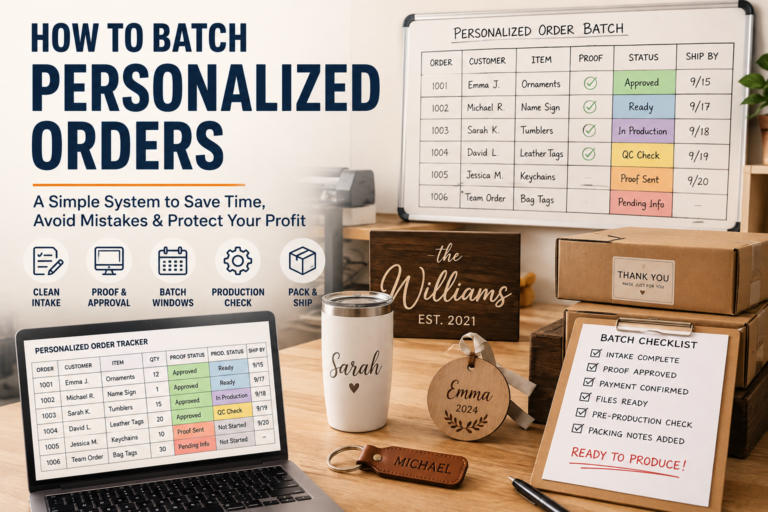
A simple personalized order batch tracker any small shop can use
A spreadsheet can work if it’s built around decisions, not clutter.
Here is a practical starter column set:
- Batch ID
- Order ID
- Customer name
- Contact method
- Product/SKU
- Quantity
- Personalization text
- Options/material/color
- Deadline/event date
- Ship-by or pickup date
- Payment status
- Proof status
- Approved proof version
- Production status
- Packing status
- Notes
If that feels like too much, reduce it carefully. Don’t remove the columns that prevent mistakes: personalization text, proof status, approved version, deadline, and packing status.
Color coding can help, but don’t let colors replace words. A green cell isn’t enough if nobody remembers what green means. Use clear labels like “Proof approved,” “Ready for next batch,” and “Packed.”
A small shop usually doesn’t need a complex dashboard. It needs a tracker that makes blocked orders obvious.
For example:
- Intake incomplete: don’t quote or proof yet.
- Proof sent: waiting on customer.
- Revision requested: don’t produce.
- Proof approved: check payment and batch cutoff.
- Locked for production: ready for the next batch.
- Packed: ready for pickup/shipping.
That’s the difference between a spreadsheet that stores information and a spreadsheet that runs the workflow.
If your spreadsheet is becoming too fragile, the next step isn’t automatically a giant system. Look for tools that support the workflow you already defined: forms, status tracking, file storage, proof approvals, labels, and customer communication. The Business Tools page is a useful place to think through those categories without turning the whole shop into software research.
When to move beyond a spreadsheet
A spreadsheet is fine until it starts hiding risk.
You may be outgrowing it if:
- multiple people need to update the same orders
- customers submit files and details through too many channels
- proof approvals are hard to document
- packing mistakes are increasing
- status labels are inconsistent
- order volume makes manual updates unreliable
- you can’t quickly tell which jobs are ready for production
- reorders require too much searching
Don’t upgrade just because an app looks cleaner. Upgrade when the spreadsheet can no longer protect the workflow.
The right tool should make the important stages clearer: intake, proof, approval, production, packing, shipping, and archive. If a tool adds complexity without making those stages easier to control, it isn’t really solving the problem.
Keep the examples broad, not event-only
Event personalization is one obvious place where batching matters. Wedding place cards, party favors, guest tags, table numbers, corporate event gifts, team awards, and school items can all create list-heavy order data.
That’s why the recent wedding and event personalization trends are useful context. But the batching problem is bigger than events.
The same system applies to:
- holiday ornaments
- family name signs
- pet tags
- school spirit items
- staff badges
- client gifts
- market preorders
- engraved awards
- personalized packaging add-ons
- custom labels or tags
The category changes. The control points stay similar: clean intake, approved proof, locked batch, pre-production check, and packing handoff.
FAQ: Batching personalized orders
What is the best way to batch personalized orders?
The best way to batch personalized orders is to group similar jobs into a defined production window and only include orders with complete intake, approved proofs, payment status handled according to your policy, and clear packing/shipping notes. Don’t add incomplete or late-changing orders to an active batch just because the customer wants the same deadline.
Can a spreadsheet work for personalized orders?
Yes. A spreadsheet can work if it acts like a simple order tracker, not just a loose note sheet. It should show customer name, product, personalization text, proof status, approved version, payment status, deadline, production status, and packing status. If the sheet can’t tell you which orders are actually ready, it needs to be tightened.
What columns should a personalized order spreadsheet include?
A practical personalized order spreadsheet should include batch ID, order ID, customer name, product/SKU, quantity, personalization text, options, deadline, ship-by or pickup date, payment status, proof status, approved proof version, production status, packing status, and notes. Add more only if the extra fields help prevent errors or speed up handoff.
How do I reduce spelling mistakes on custom products?
Collect personalization text in one clean intake path, use that record as the source for the proof, make the customer approve the exact final version, and compare the approved proof against the production file before making the batch. Avoid copying names from scattered screenshots or message threads during production.
When should a personalized order move to the next batch?
A personalized order should move to the next batch if intake is incomplete, the proof isn’t approved by the cutoff, payment hasn’t met your policy, files are missing or wrong, or the customer requests a change after the batch has closed. Moving the order is usually safer than forcing it into production and risking a remake.
Do I need order-management software for custom products?
Not always. Many small shops can start with a form, spreadsheet, cloud folder, proofing process, and clear file-naming system. Order-management software becomes more useful when volume, team handoffs, file uploads, approvals, and packing details are too hard to control manually.
Final takeaway
Batching personalized orders isn’t about making your shop feel bigger than it’s. It’s about making the work less fragile.
A small shop can handle a surprising amount of custom work if the order data is clean, the proof status is clear, the batch has a cutoff, the production window is controlled, and packing knows exactly what belongs to each customer.
The dangerous version is the opposite: names in DMs, approvals in screenshots, deadlines in memory, files with vague names, and one spreadsheet that says “in progress” for everything.
That isn’t a batch system. That’s a remake waiting to happen.
Start with one master record. Separate proof status from production status. Lock the batch before production starts. Check every order against the approved version. Match the finished item to the packing label before it leaves the shop.
Those aren’t complicated moves. They’re the boring controls that keep personalized products profitable when order volume climbs.
If custom work feels manageable at three orders but chaotic at fifteen, the issue probably isn’t your ability to make the products. It’s the system around the batch.
[…] Keep unverified parts away from accepted ones. A tidy pocket can make a questionable item look approved when it hasn’t been. If you already use an order sheet, hang on to it. Physical organization doesn’t replace the approval and quantity controls in batching personalized orders. […]
[…] personalized work, clean order status matters. The guide to batching personalized orders without spreadsheet chaos explains how to separate intake, proof, approval, production, and packing status. Use that order […]