
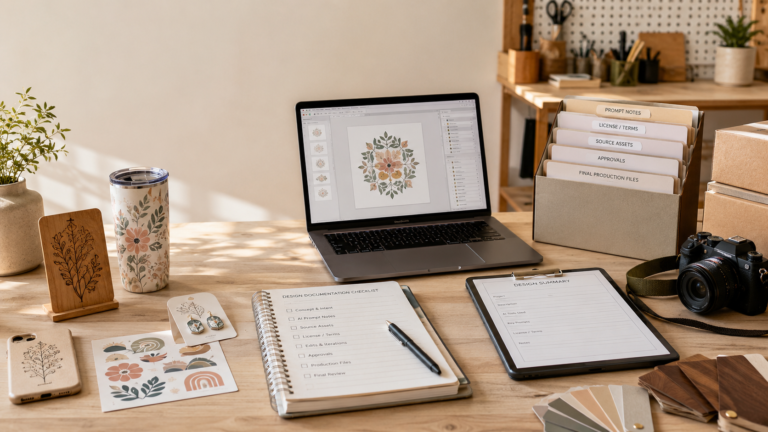
Using AI-assisted designs in a product business isn’t only a yes-or-no permission question.
The first question is whether the design is appropriate to use at all. Laticy covered that foundation in Can You Use AI-Generated Designs on Products You Sell?: tool terms, marketplace rules, trademark risk, style mimicry, uploaded assets, and client expectations all matter.
This article is the second part of that workflow.
If you decide an AI-assisted design is worth moving forward with, what should you save before it becomes a product?
That question sounds boring until a listing is questioned, a client asks where a design came from, a marketplace requests more information, or you need to reuse a design six months later and can’t remember which file, prompt, license, or approval chain created it.
Good documentation doesn’t magically make a risky design safe. It doesn’t replace legal advice. It doesn’t prove ownership by itself.
But it does make your workflow cleaner, your decisions easier to explain, and your product files less dependent on memory.
For sellers, that matters.
Why AI Design Documentation Matters More Than Sellers Think
A lot of small shops save the final PNG, SVG, PDF, or production file and call it done.
That isn’t enough if the design involved AI tools, uploaded references, purchased assets, client input, marketplace rules, or multiple edited versions.
The problem isn’t only legal risk. It’s operational risk.
Six months later, you may need to know:
- which tool created the first version
- whether the tool terms allowed your intended use at that time
- which source images or client assets were uploaded
- whether a font, template, mockup, texture, or stock element had a separate license
- which edited version became the actual product file
- whether the client approved that version
- which listing used the final design
- what the marketplace rules looked like when you published
If you can’t answer those questions, you may still be fine. But you’re relying on luck and memory instead of a repeatable business process.
That’s a weak system.
AI design tools move fast. Terms change. Marketplaces update policies. Client expectations shift. Copyright and AI guidance is still developing, including public work from the U.S. Copyright Office on copyright and artificial intelligence.
For a small seller, the practical takeaway is simple: don’t treat AI design work like a disposable experiment once it becomes a product file.
Treat it like a business record.
The Minimum Record Set Before You Print, Cut, or Engrave
Before an AI-assisted design becomes a physical product, listing image, client proof, engraving file, UV print file, laser cut file, sticker sheet, apparel transfer, or digital download, save the basic record trail.
At minimum, keep:
- the AI tool or design platform used
- the account or plan level you relied on, if relevant
- the date the design was generated
- the date the final export was created
- the prompt, concept brief, or generation notes
- all uploaded source images, reference files, logos, sketches, textures, or client assets
- notes on where those source assets came from
- receipts or license records for any purchased art, fonts, templates, stock images, or design elements
- screenshots or PDFs of the relevant tool terms you relied on
- screenshots of marketplace rules if the design was created for Etsy, Amazon, POD, or another platform
- the edited working file, not only the flattened final export
- the final production file actually used
- client approval messages if the work was custom
- a screenshot or PDF of the live listing once published
That sounds like a lot, but most of it can be saved in a simple folder before you move the product into production.
The goal isn’t to build a legal archive that slows your shop down. The goal is to keep enough context that future-you can understand the design without guessing.
A Seller’s AI Design Documentation Checklist
Use this as a practical pre-production checklist.
1. Tool and Account Details
Save the name of the tool or platform you used and the date you used it.
If the commercial-use terms depend on account level, plan, credits, enterprise status, or another paid feature, record that too. A screenshot of your account tier or billing receipt can help if you need to remember which terms applied at the time.
Don’t rely on “I think I had the paid plan.” Write it down or save the proof.
2. Terms or License Snapshot
Tool terms change. Marketplace policies change. Creator platforms change.
If you’re relying on a tool’s commercial-use language, save a dated screenshot or PDF of the relevant section. You don’t need to print the whole internet. You need enough to show what you checked and what you relied on when the design entered your product workflow.
Save terms for:
- the AI tool or generator
- any design platform used after generation
- stock elements, fonts, templates, or mockups
- marketplace rules if the product will be sold on a specific platform
- print-on-demand platform rules if a POD partner is involved
This doesn’t mean the terms guarantee safety. It means you aren’t trying to reconstruct the decision from memory later.
3. Prompt or Concept History
Save the prompt history if possible.
If the tool doesn’t make that easy, save a text note with the core concept, terms you avoided, and major prompt direction. This is especially useful if you’re trying to show that the design came from your own product concept rather than a named artist, brand, character, team, franchise, or commercial lookalike.
A useful prompt record might include:
- the original product idea
- important descriptive terms
- negative prompts or exclusions
- changes made between versions
- notes about avoiding protected brands, characters, or artist names
- why the final version was selected
Don’t treat prompt history as proof of ownership. Treat it as workflow context.
4. Uploaded Source Assets
This is one of the easiest places to lose the rights trail.
If you uploaded anything into the AI workflow, save it in the product folder and note where it came from.
That includes:
- customer logos
- customer-provided photos
- sketches
- previous product photos
- stock images
- design files
- font samples
- textures
- patterns
- reference art
- competitor inspiration screenshots
The AI output doesn’t erase the source-asset question. If the input wasn’t clean, the output may still carry risk.
For custom client work, also save the message where the client confirms they’ve the right to provide the logo, image, artwork, or reference material. That isn’t perfect protection, but it’s better than accepting mystery files with no record.
5. License Receipts and Purchased Assets
AI-assisted designs often get combined with non-AI pieces.
A seller might generate the illustration with one tool, add a purchased font, use a stock texture, place it in a paid template, and create mockups with another platform.
Each piece may have its own license.
Save receipts and license records for:
- fonts
- stock images
- design bundles
- SVG files
- Procreate brushes
- mockup templates
- Canva or design-platform elements
- purchased illustrations
- texture packs
- clipart
This is where the article Can You Buy Design Files and Sell What You Make? is still relevant. Bought design files and AI-assisted outputs are different, but both need a rights trail before they become products.
6. Version History and Edits
Don’t save only the final flattened file.
Keep the working file and meaningful export stages so you can tell which version became the product. This is especially useful when a design gets edited for production.
For example:
- original AI output
- cleaned-up design file
- vectorized version
- color-separated version
- laser-ready SVG
- UV print layout
- engraving proof
- client revision 1
- final approved production file
Use plain file names that make sense later. “final-final-v3-real.png” isn’t a system. A simple date, SKU, and version number is better.
Example:
- 2026-08-11-moon-floral-ai-output-v1.png
- 2026-08-11-moon-floral-cleanup-v2.psd
- 2026-08-12-moon-floral-client-proof-v3.pdf
- 2026-08-12-moon-floral-production-final.svg
The point isn’t perfection. The point is traceability.
7. Client Approvals and Revision Notes
Custom work needs a stronger record than catalog work.
If the design is for a client, save:
- the original request
- any client-supplied assets
- the client’s approval to use those assets
- proof images or mockups sent to the client
- revision requests
- final approval message
- usage scope if the client expects exclusivity, resale rights, event-only use, or brand use
Don’t rely on a vague “looks good” buried in a social DM thread if the job matters. Screenshot or export the approval and save it with the project file.
If the client wants something “like this artist,” “like this logo,” or “like this brand,” document the red flag and redirect the project into safer visual attributes instead.
What to Save for Catalog Products vs. Custom Orders
Not every product needs the same documentation depth.
A catalog product you sell repeatedly needs a clean baseline record: tool, date, source assets, terms snapshot, working file, final export, and listing screenshot.
A custom order needs more context: client request, supplied assets, approvals, revisions, and usage scope.
A wholesale or licensing deal may need even more: rights language, exclusivity terms, territory, product categories, and written approval from someone who actually has authority.
For a simple shop workflow, think in three levels.
Level 1: Catalog SKU Record
Use this for products you design and sell yourself.
Save:
- design brief or prompt
- source assets
- terms/license snapshot
- working file
- final production file
- listing screenshot
- SKU or product name tie-back
Level 2: Custom Client Record
Use this when a customer or business client is involved.
Add:
- client request
- client-supplied assets
- approval to use supplied assets
- proof/revision history
- final approval
- usage scope notes
Level 3: Higher-Risk Commercial Record
Use this when the design is tied to larger quantities, wholesale, brand work, paid licensing, or anything that would be painful to pull later.
Add:
- more detailed terms screenshots
- formal license files
- contracts or written usage language
- approval from the client’s authorized contact
- attorney review notes if needed
Most Etsy sellers and small shops don’t need enterprise-level records for every tiny product. But they do need a repeatable default that’s better than “the file is somewhere in Downloads.”
Style-Emulation Red Flags to Document or Avoid
Some prompts create more risk than others.
If your design process depends on a named artist, a living creator, a known entertainment franchise, a sports team, a brand identity, or a highly recognizable commercial look, the documentation question changes.
You don’t just need to save the prompt. You need to ask whether that prompt should have been used in the first place.
Red flags include:
- “in the style of [living artist]”
- “make this look like [brand]”
- “Disney-style,” “Pixar-style,” or other recognizable studio-style prompts
- sports-team color and mascot combinations that clearly point to a real team
- fake logos that look close to real logos
- character-like designs meant to evoke protected entertainment properties
- reference images pulled from another seller, illustrator, or brand
- customer requests to “make it close but not exact”
A safer workflow is to describe visual attributes instead of identities.
Instead of naming a specific artist or franchise, document neutral design direction:
- warm hand-drawn floral illustration
- bold retro camping badge with limited colors
- soft watercolor-style pet portrait with loose edges
- clean geometric mountain line art
- playful nursery wall art with muted earth tones
That doesn’t remove every risk, but it makes the workflow less dependent on copying someone else’s identity.
If a design still looks too close to a known work after generation, don’t let documentation become a way to excuse it. Change the design or skip it.
A Simple Folder Structure Sellers Can Actually Maintain
The system only works if it’s easy enough to use.
Here’s a simple folder structure for AI-assisted product designs:
/product-or-sku-name/
 01-brief-prompts/
 02-source-assets/
 03-terms-licenses/
 04-ai-outputs/
 05-edits-working-files/
 06-production-files/
 07-client-approvals/
 08-listing-screenshots/
If that feels too heavy, simplify it:
/product-or-sku-name/
 prompts-and-notes/
 source-and-license-files/
 working-files/
 final-production-files/
 approvals-and-listings/
The exact folder names don’t matter. Consistency matters.
If your shop already uses project management tools, cloud storage, or spreadsheets, connect the system to what you already use. The goal isn’t to create another abandoned folder standard. The goal is to make the design traceable from idea to listing.
This is also where a simple operations page like Business Tools can be useful. You don’t need a complicated legal-tech stack. You need a place where files, screenshots, receipts, approvals, and production versions don’t disappear.
What Documentation Doesn’t Fix
Documentation isn’t a magic shield.
It doesn’t fix a design that uses a protected logo.
It doesn’t make unclear source images safe.
It doesn’t make a marketplace accept something that violates its policies.
It doesn’t prove copyright ownership of an AI-heavy output by itself.
It doesn’t turn a client’s unauthorized brand file into a clean asset.
It doesn’t guarantee that another seller, platform, artist, or rights owner will agree with your decision.
That’s why documentation should sit inside a larger review workflow. If the design looks too close to a real brand, character, artist, team, product, or existing seller’s work, the better move isn’t “save more screenshots.”
The better move is to change the design or not sell it.
How This Connects to Product Listings and Photos
The design file isn’t the only thing customers see.
Your listing title, description, tags, mockups, product photos, and packaging can also create confusion if they imply a connection you don’t have.
For example, a design might avoid a direct logo but still use listing language that suggests a brand, team, celebrity, or franchise. Or a mockup might make the item look like official merchandise when it isn’t.
When you publish the product, save:
- the listing title
- description
- tags or keywords
- product photos or mockups
- screenshots of the live listing
- any platform category or disclosure choices
- the exact production file tied to that listing
That’s also a reminder to keep product presentation clean. If you need help making product photos look clear without creating misleading context, use Laticy’s guide to product photography setup for laser, CNC, UV, and 3D printed products.
The product record should match the public listing. If the listing changes meaning later, update the record.
A Pre-Production AI Design Record Template
Here’s a simple template you can copy into a note, spreadsheet, or project file.
Product / SKU name:
Date created:
Date final export created:
AI tool or design platform used:
Account / plan level at time of creation:
Prompt or concept summary:
Source assets uploaded:
Source asset origin / license:
Purchased fonts, art, textures, templates, or mockups:
Tool terms saved? Y/N + file path:
Marketplace or POD rules saved? Y/N + file path:
Major edits made after generation:
Final production file name:
Listing URL or draft listing name:
Client approval saved? Y/N / N/A:
Style, brand, character, or trademark red flags checked? Y/N:
Notes:
That’s enough to make the product easier to understand later.
It won’t answer every legal question, but it’ll make your workflow less fragile.
Bottom Line: Save the Proof Before the Product Goes Live
AI-assisted design workflows are moving too fast for sellers to rely on memory.
If you use AI-generated or AI-assisted designs in a product business, build the record trail before the file becomes a listing, print job, engraving job, transfer, or client deliverable.
Save the tool terms you relied on. Save prompt or concept history. Save source assets. Save licenses and receipts. Save approvals. Save working files and final exports. Save listing screenshots.
Good documentation won’t make a risky design safe.
But it’ll help you run a cleaner business, make better decisions, and avoid the worst version of the problem: trying to explain a design months later with nothing but memory and a final file.
FAQ
Is This Legal Advice?
No. This is practical business workflow guidance for sellers. If a design has serious copyright, trademark, client, or licensing risk, ask a qualified attorney.
Does Saving Prompts Prove I Own an AI-Generated Design?
No. Prompt records are useful workflow context, but they don’t automatically prove ownership, copyrightability, or commercial safety.
What Is the Most Important AI Design Record to Save?
Start with the tool terms or license you relied on, the prompt or concept history, any uploaded source assets, and the final production file. For client work, also save written approvals.
Do I Need Screenshots of Marketplace Rules?
If the design is being sold on a marketplace with specific AI, handmade, IP, or prohibited-content rules, a dated screenshot or PDF can be useful. Marketplace rules change, and you may need to remember what you checked at the time.
Can Documentation Make a Risky AI Design Safe to Sell?
No. Documentation helps show what you used and what you relied on. It doesn’t fix trademark confusion, unclear source rights, copied style, unauthorized client assets, or a design that violates marketplace rules.